
How to Set Up Remote Recording with Guests
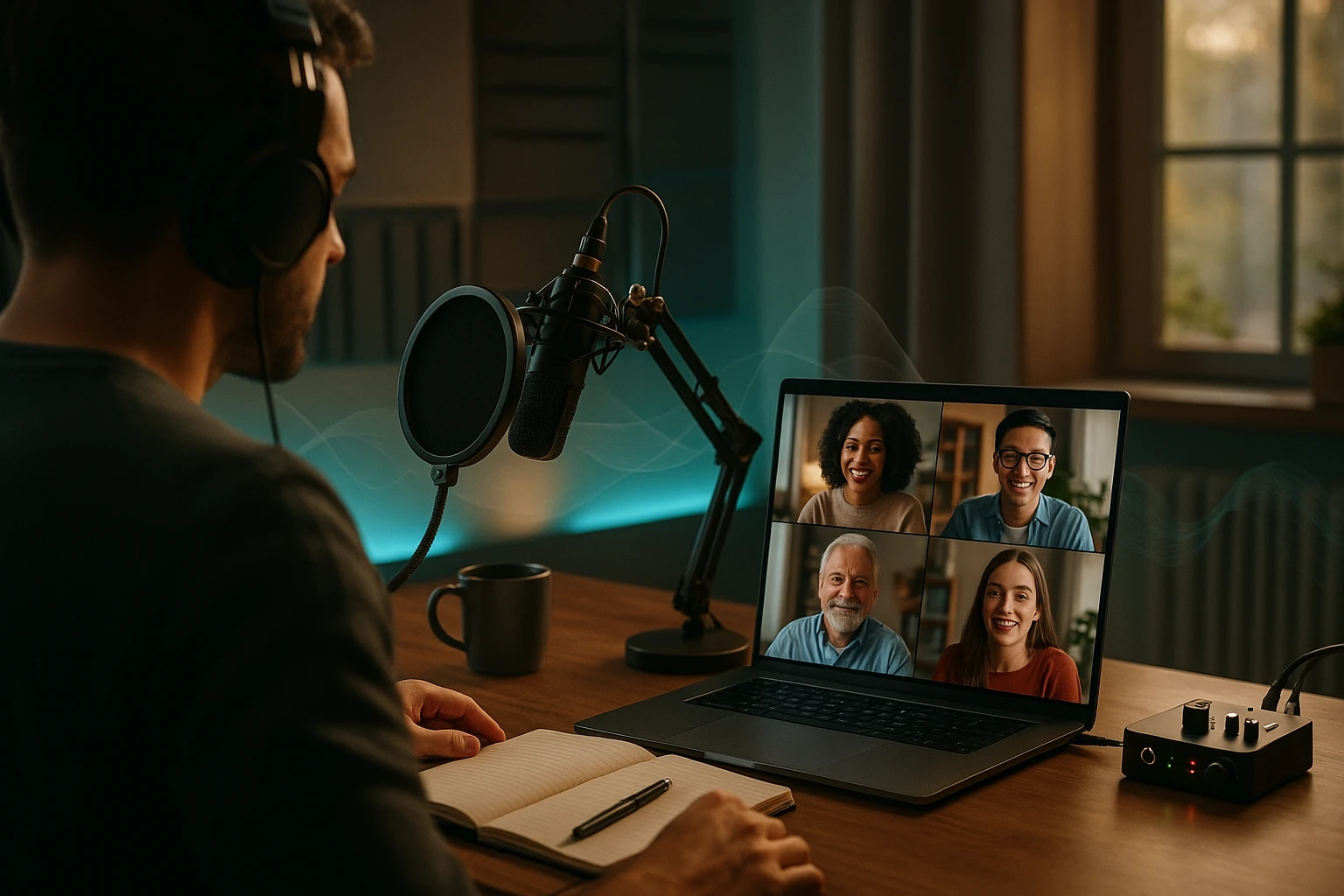
How to Set Up Remote Recording with Guests
The landscape of content creation has fundamentally transformed in recent years, with remote recording becoming not just a convenient option but often a necessity for podcasters, video creators, and digital professionals worldwide. Whether you're producing a podcast from your home studio, conducting interviews across continents, or collaborating with experts who can't physically be in the same room, understanding how to capture high-quality remote recordings has become an essential skill. The technical and logistical challenges of remote recording can seem daunting at first, but with the right approach and tools, you can achieve professional results that rival traditional in-studio productions.
Remote recording refers to the process of capturing audio or video content from participants who are in different physical locations, typically connected through internet-based platforms or specialized recording software. This methodology encompasses everything from simple voice calls to sophisticated multi-track recording sessions, offering creators unprecedented flexibility in who they can work with and when. The beauty of remote recording lies in its ability to break down geographical barriers while maintaining production quality, though it requires careful attention to technical setup, communication protocols, and workflow optimization.
Throughout this comprehensive guide, you'll discover practical strategies for selecting the right equipment and software, preparing your guests for optimal recording quality, troubleshooting common technical issues, and implementing professional workflows that ensure consistency across all your remote sessions. You'll learn about various recording methods from basic to advanced, understand how to coach guests who may be unfamiliar with remote recording processes, and gain insights into post-production techniques that can elevate your final output regardless of the challenges encountered during capture.
Essential Equipment and Technical Requirements
Building a reliable remote recording setup begins with understanding the fundamental equipment needs for both you as the host and your guests. The quality of your remote recordings depends heavily on the weakest link in the technical chain, which means paying attention to every component from microphones to internet connections becomes critical for success.
Microphone Selection and Audio Interface Considerations
The microphone represents the single most important investment for audio quality in remote recording scenarios. While built-in laptop microphones might seem convenient, they typically produce thin, echo-prone recordings that immediately signal amateur production values to listeners. A dedicated USB microphone offers significant improvement at an accessible price point, with models ranging from entry-level options around fifty dollars to professional-grade equipment exceeding several hundred dollars.
Dynamic microphones excel in untreated environments because they naturally reject ambient noise and focus on sound sources directly in front of the capsule. These microphones work particularly well for guests recording from home offices, living rooms, or other spaces without acoustic treatment. Condenser microphones, while offering superior sensitivity and frequency response, require quieter environments and often pick up unwanted room reflections, keyboard clicks, and HVAC system noise.
"The difference between a five-dollar headset and a hundred-dollar USB microphone is immediately apparent to any listener, and that quality gap directly impacts whether your audience continues listening or clicks away within the first thirty seconds."
Audio interfaces provide an alternative pathway for connecting professional XLR microphones to computers, offering greater flexibility and upgrade potential compared to USB microphones. These devices convert analog audio signals to digital data while providing features like gain control, phantom power for condenser microphones, and often superior preamps compared to those found in USB microphones. For hosts planning to conduct numerous remote recordings, investing in an audio interface creates a scalable foundation that accommodates equipment upgrades without requiring complete system overhauls.
Headphone Requirements and Monitoring Setup
Closed-back headphones serve as essential equipment for remote recording because they prevent audio bleeding from the headphone speakers back into the microphone. This feedback loop creates echo effects that render recordings unusable, yet many first-time remote recording participants unknowingly use open-back headphones or computer speakers that cause exactly this problem.
🎧 Closed-back design prevents audio leakage
🎧 Comfortable fit enables extended recording sessions
🎧 Accurate frequency response aids in monitoring audio quality
🎧 Sufficient cable length allows natural movement
🎧 Durable construction withstands regular use
Monitoring your own audio during recording helps identify technical issues in real-time rather than discovering problems during post-production when corrections become impossible. Many recording platforms offer options to hear yourself with slight delay, which helps maintain natural speaking patterns while ensuring microphone positioning remains optimal throughout the session.
Internet Connection Stability and Bandwidth Management
Network connectivity represents the invisible infrastructure supporting all remote recording activities, yet many creators overlook this critical component until connection problems disrupt important sessions. Wired ethernet connections provide dramatically more stable performance compared to WiFi, eliminating interference from other devices, physical obstacles, and competing network traffic that plague wireless connections.
| Connection Type | Typical Stability | Recommended Use Case | Potential Issues |
|---|---|---|---|
| Wired Ethernet | Excellent | All recording scenarios | Requires physical cable routing |
| 5GHz WiFi | Good | Short recordings in proximity to router | Interference from walls and devices |
| 2.4GHz WiFi | Fair | Emergency situations only | Congestion, interference, limited bandwidth |
| Mobile Hotspot | Variable | Backup connection option | Data caps, signal strength variations |
Bandwidth requirements vary significantly depending on your chosen recording method. Platforms that record locally on each participant's computer require minimal bandwidth since they only transmit compressed audio for monitoring purposes, while cloud-based recording systems that capture audio in real-time demand consistent upload speeds to prevent dropouts and quality degradation.
Choosing the Right Recording Platform and Software
The recording platform you select fundamentally shapes your workflow, audio quality potential, and post-production requirements. Different platforms employ varying approaches to capturing remote audio, each with distinct advantages and limitations that suit different production scenarios and technical comfort levels.
Local Recording vs Cloud Recording Methods
Local recording platforms capture audio directly on each participant's device, storing high-quality files that remain unaffected by internet connection fluctuations. This approach delivers superior audio quality because the recording process operates independently from the network connection used for communication. Platforms like SquadCast, Riverside.fm, and Zencastr pioneered this methodology, which has become the gold standard for professional podcast production.
The primary advantage of local recording lies in its resilience against network issues. Even if the internet connection drops temporarily during a conversation, the local recordings continue uninterrupted, and only the real-time communication experiences disruption. This safety net proves invaluable during long-form interviews where connection stability over extended periods becomes increasingly uncertain.
"Cloud recording platforms offer convenience and simplicity, but local recording methods provide the quality assurance that separates amateur productions from professional content that stands the test of time."
Cloud-based recording platforms like Zoom, StreamYard, and Google Meet capture audio as it streams over the internet, storing recordings on remote servers for easy access and sharing. While convenient, this approach introduces vulnerability to network issues that can degrade audio quality through compression artifacts, dropouts, and synchronization problems. These platforms work well for video-focused content where visual elements carry equal or greater importance than audio fidelity, or for situations where ease of use outweighs quality concerns.
Specialized Podcast Recording Platforms
Purpose-built podcast recording platforms offer features specifically designed for audio content creators, distinguishing themselves from general-purpose video conferencing tools through superior audio processing, multi-track recording capabilities, and podcaster-friendly workflows.
SquadCast provides progressive upload technology that continuously backs up local recordings to cloud storage throughout the session, protecting against computer crashes or participants accidentally closing their browser windows before uploads complete. The platform supports up to four video participants simultaneously while recording separate audio tracks for each person, enabling independent post-production processing that can rescue problematic recordings through targeted editing and audio enhancement.
Riverside.fm emphasizes video quality alongside audio excellence, recording locally in up to 4K resolution while simultaneously capturing uncompressed WAV audio files. This dual focus makes Riverside particularly attractive for creators producing video podcasts or YouTube content where visual presentation matters as much as audio quality. The platform includes built-in editing tools that streamline post-production workflows, though serious productions typically still benefit from dedicated audio editing software.
Zencastr takes a minimalist approach focused exclusively on audio recording, offering straightforward interfaces that reduce technical complexity for guests while delivering reliable multi-track recordings. The platform includes automatic post-production features like volume leveling and noise reduction, though these automated processes cannot match the nuanced control available through manual editing in professional audio software.
Video Conferencing Platforms for Recording
Zoom dominates the video conferencing landscape and offers built-in recording capabilities that many creators leverage for remote content production. The platform provides options to record locally to your computer or to Zoom's cloud storage, with local recordings offering better quality since they avoid additional compression cycles. Zoom recordings capture all participants in a single audio file by default, though enabling "Record a separate audio file for each participant" in settings provides multi-track recordings that dramatically improve post-production flexibility.
| Platform | Recording Method | Audio Quality | Best For | Pricing Model |
|---|---|---|---|---|
| SquadCast | Local + Progressive Upload | Excellent (WAV) | Professional podcasts | Subscription |
| Riverside.fm | Local Recording | Excellent (WAV) | Video podcasts | Subscription |
| Zencastr | Local Recording | Excellent (WAV) | Audio-focused podcasts | Freemium |
| Zoom | Cloud or Local | Good (MP4/M4A) | Video-heavy content | Freemium |
| StreamYard | Cloud Recording | Good (MP4) | Live streaming with recording | Freemium |
Preparing Your Guests for Optimal Recording Quality
Guest preparation represents one of the most overlooked aspects of remote recording, yet it directly determines whether you spend hours fixing audio problems in post-production or enjoy clean recordings that require minimal editing. Most guests lack experience with remote recording and need clear guidance to set up their equipment properly and understand the technical requirements for quality audio capture.
Creating Comprehensive Pre-Recording Guidelines
Developing a detailed guest preparation document that you send several days before recording sessions establishes clear expectations and gives participants time to address equipment or environment issues. This document should cover technical requirements, environment recommendations, and what to expect during the recording process itself.
Technical requirements should specify minimum equipment standards while acknowledging that not all guests own professional recording gear. Clearly communicate that built-in computer microphones and wireless earbuds produce suboptimal results, but provide realistic alternatives at various price points so guests can make informed decisions based on their budget and commitment level.
Environment recommendations help guests understand how physical space affects audio quality. Many people record in rooms with hard surfaces that create echo and reverberation, unaware that these acoustic problems significantly degrade recording quality. Simple suggestions like recording in rooms with soft furnishings, closing windows to reduce traffic noise, and turning off fans or air conditioning during recording sessions can dramatically improve audio capture without requiring any equipment investment.
Conducting Technical Check Calls
Scheduling brief technical check calls fifteen to thirty minutes before actual recording sessions allows you to identify and resolve issues before they impact your content. These checks serve multiple purposes: verifying that guests can access the recording platform, testing audio levels and quality, confirming that headphones prevent echo, and familiarizing participants with the recording interface so they feel comfortable during the actual session.
"Spending fifteen minutes on a technical check call can save hours of post-production work and prevent the heartbreak of discovering that an irreplaceable interview was captured with unusable audio quality."
During technical checks, listen carefully for common audio problems like room echo, background noise, mouth clicks, and excessive sibilance. Each of these issues has specific solutions: echo requires acoustic treatment or room change, background noise demands source elimination or microphone repositioning, mouth clicks often improve with hydration, and sibilance can be reduced through microphone placement adjustments or pop filter use.
Coaching Guests on Recording Best Practices
Many guests need explicit instruction on behaviors that optimize recording quality, as these practices feel counterintuitive to people accustomed to casual video calls. Explaining why certain behaviors matter helps guests understand the reasoning behind your requests and increases compliance with recommendations.
🎙️ Position microphones four to six inches from mouth for optimal balance between clarity and room noise rejection
🎙️ Speak at consistent volume levels to maintain steady audio dynamics throughout recording
🎙️ Minimize physical movement that creates handling noise or changes microphone distance
🎙️ Avoid interrupting other speakers to prevent overlapping dialogue that complicates editing
🎙️ Silence phone notifications and close unnecessary computer applications to eliminate unexpected sounds
Addressing microphone technique proves particularly important since many guests either position microphones too far away, resulting in thin, distant sound, or too close, causing proximity effect that creates boomy, bass-heavy audio. Demonstrating proper positioning during technical checks and providing real-time feedback helps guests find the sweet spot that delivers professional sound quality.
Optimizing Recording Settings and Configuration
Proper configuration of recording software and audio settings establishes the technical foundation for quality capture, yet many creators overlook these crucial details in favor of default settings that may not suit their specific needs. Understanding key audio parameters and how they affect recording quality enables you to make informed decisions that optimize results for your particular content type and distribution channels.
Audio Format and Sample Rate Selection
Uncompressed audio formats like WAV or AIFF preserve maximum quality by storing every detail captured by your microphone without applying lossy compression algorithms that discard audio information. While these files consume significantly more storage space than compressed formats like MP3, the quality preservation proves essential for professional productions where you may apply processing, editing, or enhancement during post-production that would amplify compression artifacts present in lossy formats.
Sample rate determines how many times per second the recording system captures snapshots of the audio waveform, with higher rates theoretically preserving more high-frequency information. The standard 44.1kHz sample rate used for CD audio captures frequencies up to approximately 22kHz, exceeding the upper limit of human hearing around 20kHz. Recording at 48kHz has become common in video production and offers slight headroom above audible frequencies, while rates of 96kHz or higher provide benefits primarily for specialized audio work involving extreme pitch shifting or time stretching.
Bit depth controls the dynamic range and noise floor of digital audio recordings, with 16-bit offering sufficient quality for most applications and 24-bit providing additional headroom that proves valuable when recording sources with wide dynamic range or when you need flexibility to adjust levels during post-production without introducing noise artifacts. Recording at 24-bit costs nothing in terms of processing power and provides insurance against level-setting errors, making it the preferred choice for professional productions.
Input Level Configuration and Gain Staging
Setting appropriate input levels represents a critical balance between capturing sufficient signal to overcome system noise and avoiding clipping distortion that occurs when audio exceeds the maximum level digital systems can represent. Proper gain staging ensures your recordings maintain clean, professional sound throughout the entire dynamic range of your content.
"The difference between adequate and excellent recording levels often determines whether you spend ten minutes or ten hours in post-production trying to salvage problematic audio that could have been captured correctly from the start."
Peak levels during normal speech should target negative twelve to negative six decibels below full scale, leaving headroom for unexpected loud moments while maintaining strong signal-to-noise ratio. Many recording platforms display level meters that help you monitor audio as you record, with green indicating safe levels, yellow suggesting you're approaching maximum, and red warning that clipping distortion has occurred.
Adjusting gain depends on your specific equipment configuration. USB microphones typically include gain controls on the microphone body or require adjustment through system sound settings, while audio interfaces provide physical gain knobs that offer more precise control. The goal remains consistent regardless of equipment: achieve strong, clean levels that maximize signal quality without risking distortion during louder passages.
Managing the Recording Session
Successfully conducting remote recording sessions requires more than technical proficiency with equipment and software. Effective session management encompasses communication strategies, timing considerations, and contingency planning that together create smooth, professional recording experiences for everyone involved.
Establishing Clear Communication Protocols
Remote recording environments lack the natural nonverbal communication cues present in face-to-face interactions, making explicit verbal protocols essential for smooth conversations. Establishing these conventions at the session beginning prevents awkward interruptions and talking-over incidents that create editing challenges.
Hand signals provide visual communication methods that work well in video-enabled recording sessions. Simple gestures indicating "I have something to add," "please wrap up," or "technical problem" allow participants to communicate without verbally interrupting the flow of conversation. For audio-only sessions, agreeing on verbal cues like saying someone's name before speaking helps manage turn-taking in multi-participant recordings.
Monitoring Audio Quality Throughout Recording
Continuous audio monitoring during recording sessions allows you to catch and correct problems before they ruin entire segments of your content. Wearing headphones throughout recording and actively listening for issues like changing microphone distance, emerging background noise, or connection problems enables real-time intervention that prevents post-production nightmares.
Visual level meters complement audio monitoring by providing objective feedback about signal strength and consistency. Watching for sudden level changes, clipping indicators, or complete signal loss helps you identify problems that might not be immediately apparent through headphone monitoring alone, particularly when you're focused on conversation content rather than technical quality.
Recording Backup Strategies
Murphy's Law applies with particular force to remote recording, where the combination of multiple computers, internet connections, and software systems creates numerous potential failure points. Implementing backup recording strategies provides insurance against catastrophic losses that would otherwise require completely rescheduling sessions and hoping to recapture the magic of spontaneous conversation.
Local backup recordings offer the simplest and most reliable safety net. Running a second recording application on your computer simultaneously with your primary recording platform creates redundant capture that survives platform crashes, internet outages, or file corruption. Applications like Audacity, GarageBand, or even smartphone voice recording apps serve this purpose effectively, providing basic quality recordings that can salvage sessions when primary recordings fail.
"The only backup strategy that fails is the one you didn't implement, and discovering this truth while trying to explain to a guest why you need to completely re-record an hour-long interview ranks among the most frustrating experiences in content creation."
Troubleshooting Common Remote Recording Problems
Despite careful preparation and quality equipment, remote recording sessions inevitably encounter technical challenges that require quick diagnosis and resolution. Understanding common problems and their solutions enables you to maintain professionalism and minimize disruption when issues arise during recording sessions.
Echo and Feedback Issues
Echo represents one of the most common and frustrating problems in remote recording, occurring when audio from speakers or headphones feeds back into the microphone and creates a delayed repetition of the original sound. This feedback loop makes recordings unusable and creates disorienting experiences for participants who hear their own voices echoing back with slight delay.
The solution almost always involves ensuring that all participants use headphones rather than computer speakers, as headphones contain sound within the ear cups and prevent it from reaching microphones. When guests report that they prefer not to wear headphones due to comfort concerns, explaining that headphone use represents a non-negotiable requirement for quality recording usually resolves resistance.
Background Noise and Environmental Interference
Environmental noise infiltrates recordings through countless sources: traffic outside windows, HVAC systems, refrigerator compressors, barking dogs, and other household sounds that participants often tune out mentally but microphones capture faithfully. Identifying noise sources and implementing solutions during recording prevents the need for extensive noise reduction processing that can degrade overall audio quality.
Systematic noise elimination begins with identifying the loudest or most disruptive sources and addressing them first. Closing windows reduces traffic noise, temporarily adjusting thermostats silences HVAC systems, and moving to different rooms escapes appliance noise. For unavoidable sounds like ongoing construction or temporary disturbances, pausing recording until the noise subsides proves more effective than attempting to continue through problematic conditions.
Connection Drops and Bandwidth Problems
Internet connection issues manifest in various ways depending on your recording platform and method. Local recording platforms continue capturing audio even when connections drop, losing only the real-time communication between participants, while cloud-based recording platforms may experience gaps, quality degradation, or complete recording failure when connections become unstable.
Addressing connection problems during active recording requires quick assessment of whether the issue affects only communication or also recording quality. For local recording platforms, brief connection drops may not warrant stopping the session since recordings remain intact, though extended outages that prevent conversation obviously require resolution before continuing. Cloud-based platforms demand more immediate action since connection problems directly impact recording quality.
Post-Production Workflow and File Management
The recording session represents only the first phase of remote content creation, with post-production work transforming raw recordings into polished, professional content ready for distribution. Establishing efficient workflows for file management, editing, and quality enhancement ensures consistent results while minimizing time investment in repetitive tasks.
Organizing and Backing Up Recording Files
Systematic file organization prevents the chaos of scattered recordings across multiple folders, platforms, and storage locations that inevitably leads to lost files and confusion about which versions represent final edits. Creating a consistent folder structure for each recording project keeps all related files together and makes locating specific recordings straightforward even months or years later.
A typical project folder structure includes separate subdirectories for raw recordings, edited audio, exported final versions, show notes, and any supplementary materials like transcripts or promotional graphics. This organization allows you to archive completed projects without mixing files from different production stages and makes returning to projects for revisions or repurposing content much simpler.
Backup strategies for recording files should follow the 3-2-1 rule: maintain three copies of important files, store them on two different types of media, and keep one copy off-site. Cloud storage services like Dropbox, Google Drive, or specialized media backup services provide off-site protection against local disasters, while external hard drives offer quick access to large media files without consuming cloud storage quotas or requiring internet access.
Audio Editing and Enhancement Techniques
Basic audio editing for remote recordings typically involves removing unwanted sections, adjusting levels for consistency, and applying processing to enhance clarity and presence. Digital audio workstations like Adobe Audition, Logic Pro, or the free Audacity provide the tools necessary for these tasks, though the learning curve for professional audio software can seem daunting to creators focused primarily on content rather than technical production.
Noise reduction processing can salvage recordings with moderate background noise, though aggressive noise reduction introduces artifacts that make audio sound processed and unnatural. The best approach involves applying minimal noise reduction to maintain natural sound quality while accepting that some background noise in remote recordings reflects the authentic nature of the medium and rarely bothers listeners as much as creators fear.
Synchronizing Multi-Track Recordings
Multi-track recordings from remote sessions often arrive slightly out of sync due to variations in when participants started recording or differences in how recording platforms handle timing. Synchronizing these tracks ensures that all voices align properly and that editing cuts work across all tracks simultaneously.
Creating a sync point at the recording beginning provides a reference for aligning tracks. Having all participants clap simultaneously or creating a sharp sound that appears clearly in all recordings gives you a visual spike in the waveforms that you can align across all tracks. Modern audio editing software often includes automatic alignment features that can synchronize tracks based on their audio content, though manually verifying alignment prevents potential mismatches that automated systems might create.
"The time invested in properly synchronizing multi-track recordings pays dividends throughout the entire editing process, turning what could be a frustrating puzzle into a straightforward editing session where all tracks work together seamlessly."
Advanced Remote Recording Techniques
Once you've mastered basic remote recording workflows, advanced techniques can elevate your production quality and expand your creative possibilities. These methods require additional technical knowledge and sometimes more sophisticated equipment, but they enable production values that distinguish your content in increasingly crowded media landscapes.
Double-Ender Recording Method
The double-ender technique involves each participant recording their own audio locally using dedicated recording software on their computer, completely independent of the communication platform used for conversation. This method delivers maximum audio quality since each person's recording never travels over the internet until after the session concludes, eliminating all compression, dropouts, and quality degradation associated with streaming audio.
Implementing double-ender recording requires more coordination than platform-based recording since you must instruct guests on installing and using recording software, ensuring they start and stop recording at appropriate times, and successfully uploading their files after sessions conclude. The quality improvement justifies this additional complexity for professional productions where audio excellence represents a core value proposition.
Multi-Platform Redundancy Recording
Recording simultaneously on multiple platforms creates redundancy that protects against platform-specific failures while providing options for choosing the best quality recording from multiple sources. This approach might involve running both a specialized podcast recording platform and a Zoom backup recording, or recording locally on your computer while also using a platform's built-in recording feature.
The storage and processing overhead of multi-platform recording makes it impractical for every session, but for particularly important interviews or episodes featuring hard-to-reschedule guests, the insurance value of multiple recordings outweighs the inconvenience of managing additional files.
Real-Time Audio Processing and Enhancement
Software solutions like Audio Hijack for Mac or Voicemeeter for Windows enable real-time audio processing during recording, applying effects like compression, EQ, and noise reduction as audio is captured. This approach can improve recording quality for guests with suboptimal equipment or recording environments, though it requires significant technical expertise to configure properly and prevents you from removing processing if it proves excessive or inappropriate during post-production review.
Legal and Ethical Considerations
Remote recording involves legal and ethical dimensions that responsible creators must understand and respect. These considerations protect both you and your guests while ensuring your content creation practices align with legal requirements and community standards.
Recording Consent and Disclosure Requirements
Recording laws vary significantly by jurisdiction, with some regions requiring all-party consent for recording conversations while others permit recording with only one party's knowledge. The safest practice involves explicitly informing all participants that recording will occur and obtaining their verbal consent at the recording beginning, creating a clear record that everyone understood and agreed to the recording.
Written consent forms provide additional legal protection, particularly for commercial productions or content that might be repurposed across multiple platforms or media types. These forms should specify how recordings will be used, whether participants retain any approval rights over final content, and how long you may store and utilize the recorded material.
Copyright and Content Ownership
Clarifying copyright ownership and usage rights before recording prevents disputes about how content can be used, edited, or distributed. Standard practice in podcast and video production grants the creator full rights to edit and distribute content while respecting guests' rights to their own words and ideas.
Guest agreements should address whether participants can share or repurpose their portions of recordings, whether they have approval rights over final edits, and how they should be credited in published content. Clear agreements prevent misunderstandings that could damage professional relationships or create legal complications after content publication.
"Treating guests with respect and transparency about how their contributions will be used builds trust that leads to better conversations and willing return appearances, while unclear or deceptive practices create reputation damage that follows creators throughout their careers."
Building Consistent Remote Recording Workflows
Consistency in remote recording processes reduces cognitive load, minimizes errors, and creates predictable experiences for both you and your guests. Developing standardized workflows transforms remote recording from a series of ad-hoc decisions into a repeatable system that delivers reliable results regardless of specific circumstances.
Creating Recording Session Checklists
Comprehensive checklists ensure that no critical steps get overlooked in the complexity of managing technical systems, guest coordination, and content quality. These checklists should cover pre-session preparation, technical setup verification, recording procedures, and post-session file management tasks.
Pre-session checklists might include items like confirming guest availability, sending preparation materials, scheduling technical checks, testing equipment, and preparing interview questions or discussion topics. During-session checklists verify that all recording systems are active, backup recordings are running, and audio levels remain appropriate throughout the conversation. Post-session checklists ensure proper file backup, metadata documentation, and any immediate follow-up communication with guests.
Developing Guest Communication Templates
Standardized communication templates for guest outreach, technical preparation, and follow-up create professional impressions while reducing the time required for routine correspondence. These templates should maintain your personal voice and allow customization for specific situations while providing consistent structure and information across all guest interactions.
Technical preparation templates should include all equipment recommendations, environment optimization tips, platform access instructions, and what guests should expect during recording sessions. Follow-up templates might thank guests for their participation, provide timelines for when published content will be available, and request any promotional support they're willing to provide.
Continuous Workflow Improvement
Regularly reviewing your remote recording processes identifies opportunities for improvement and helps you adapt to evolving technology, changing guest expectations, and lessons learned from problematic sessions. Maintaining a simple log of issues encountered and solutions implemented creates a knowledge base that prevents repeated mistakes and accelerates problem-solving when familiar issues recur.
How much should guests invest in equipment for remote recording?
Guests should invest according to their level of commitment and frequency of participation in remote recordings. For one-time appearances, a decent USB microphone in the fifty to hundred dollar range provides significant quality improvement over built-in computer microphones without requiring major investment. Regular guests or those building their own content creation practices should consider higher-quality equipment in the two hundred to five hundred dollar range that includes a solid USB microphone or audio interface with XLR microphone, closed-back headphones, and potentially acoustic treatment for their recording space. The key is balancing quality improvement against realistic usage expectations, as expensive equipment that gets used once provides poor value compared to mid-range gear that sees regular use.
What internet speed do I need for quality remote recording?
Required internet speed depends heavily on your recording method and platform. Local recording platforms that capture audio on each participant's device require minimal bandwidth, with upload speeds as low as one to two megabits per second sufficient for maintaining communication during recording sessions. Cloud-based recording platforms demand significantly more bandwidth, typically requiring upload speeds of at least five to ten megabits per second for reliable quality, with higher speeds providing better stability and quality consistency. Video recording increases bandwidth requirements substantially, with HD video typically requiring ten to twenty megabits per second upload speed. Testing your connection speed using services like Speedtest.net before important recording sessions helps identify potential problems before they impact your content.
How can I reduce echo in remote recordings?
Echo in remote recordings almost always results from audio playing through speakers and feeding back into microphones, creating the characteristic delayed repetition that makes recordings unusable. The primary solution involves ensuring that all participants use closed-back headphones instead of speakers or open-back headphones that allow sound to escape and reach microphones. If echo persists even with headphone use, reducing headphone volume prevents sound from leaking out of the ear cups, while checking that the correct audio input device is selected in recording software ensures that the system isn't accidentally using built-in microphones instead of the intended external microphone. Recording platforms often include echo cancellation features that can help with minor issues, though these should be considered backup solutions rather than replacements for proper headphone use.
Should I edit out all background noise from remote recordings?
Background noise decisions involve balancing audio perfection against natural authenticity and practical time investment. Minor background noise like subtle room tone or distant ambient sounds rarely bothers listeners and attempting to remove every trace through aggressive noise reduction often introduces processing artifacts that sound worse than the original noise. Focus noise reduction efforts on distracting or intermittent sounds like barking dogs, ringing phones, or loud traffic that pull listener attention away from content. Consistent, low-level background noise that remains stable throughout the recording typically goes unnoticed by audiences once they adjust to it in the first few seconds. The time saved by accepting minor imperfections in remote recordings can be invested in content quality, guest preparation, or increased production volume that provides more value than pursuing audio perfection that audiences neither expect nor particularly value in remote recording contexts.
What backup recording method works best for remote sessions?
The most reliable backup recording method involves running completely independent recording software on your computer simultaneously with your primary recording platform, creating redundant capture that survives platform crashes, internet outages, or file corruption. Free applications like Audacity provide simple recording functionality that captures your microphone input and system audio without requiring complex configuration or consuming significant system resources. For additional redundancy, smartphone voice recording apps offer third backup options that operate on completely separate devices and remain unaffected by computer problems. The best backup strategy is the one you actually implement consistently, so choose methods that integrate smoothly into your workflow rather than elaborate systems that you forget to activate during actual recording sessions. Remember that backup recordings need only provide usable quality rather than perfect quality, as they serve as insurance against complete loss rather than primary production sources.
How do I handle time zone differences when scheduling remote recordings?
Time zone coordination requires careful attention to prevent embarrassing scheduling mistakes that waste everyone's time and damage professional credibility. Always specify time zones explicitly when communicating recording times, using formats like "3:00 PM Eastern Time (12:00 PM Pacific Time)" that eliminate ambiguity. Calendar applications like Google Calendar or Calendly automatically handle time zone conversions when properly configured, displaying event times in each participant's local time zone. For international recordings spanning many time zones, tools like World Time Buddy or Every Time Zone provide visual representations of multiple time zones simultaneously, making it easier to find mutually convenient recording windows. Sending calendar invitations rather than relying on email descriptions of recording times reduces confusion since calendar systems handle time zone conversions automatically and provide automatic reminders that prevent forgotten sessions.